Getting started
Create an account, install PortPilot, pair a machine, and inspect a live port in about ten minutes.
What this is
The shortest path from zero to a machine that appears in the dashboard, plus a first useful outcome: you can name the process on a port and run Diagnose.
Local discovery works without an account. Pairing attaches the machine to your licence and lets you inspect it from the website.
Prerequisites
- A Windows 10/11 x64 PC or an x86_64 Linux host with systemd
- Administrator / root to install
- For pairing: an outbound HTTPS path to
https://api.portpilot.app
Step-by-step
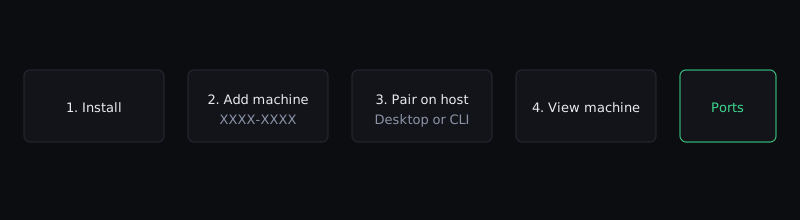
- Create an account (email + password, 10+ characters).
- Install PortPilot on the host.
- On the website open Machines → Add machine → Generate pairing code. Copy
XXXX-XXXXand keep the dialog open. - On the machine: Desktop Enter pairing code then Pair machine, or
portpilot pair. - When pairing succeeds the dialog shows Machine paired successfully — choose View machine.
- Open a listening port. Note the process. Click Diagnose.
You can skip pairing and choose Use locally on first run. Pair later from Machine in the desktop app.
First 10 minutes
Aim for a real result, not a tour of empty screens.

- Confirm the agent is up:
portpilot status(new terminal after install). - Pair as above, or stay local and open Ports in Desktop.
- Find a port you recognise (dev server, SSH, a container publish).
- Open it. Read process name, bind address, and any Docker/proxy strip.
- Run Diagnose. You should see layers such as listening, process, and local connectivity — Unknown is an honest result, not a crash.
- Optional:
portpilot doctorif anything looks off.
That is the product: a machine, its ports, and allowlisted actions on those ports. Tunnels, firewall mutate, and Cloud sync sit on top of this model when your licence includes them.
Expected result
portpilot statussucceeds- The machine appears under Machines as online (if paired)
- Ports populate; Diagnose returns a layer list
Common problems
- Pairing codes expire in about three minutes and are single-use — generate a new one
- Machine limit reached — revoke an unused machine or upgrade
- Agent not running — see Troubleshooting
Recovery
If the dashboard never shows the host, stay on the machine and run portpilot doctor, then follow Pairing.